
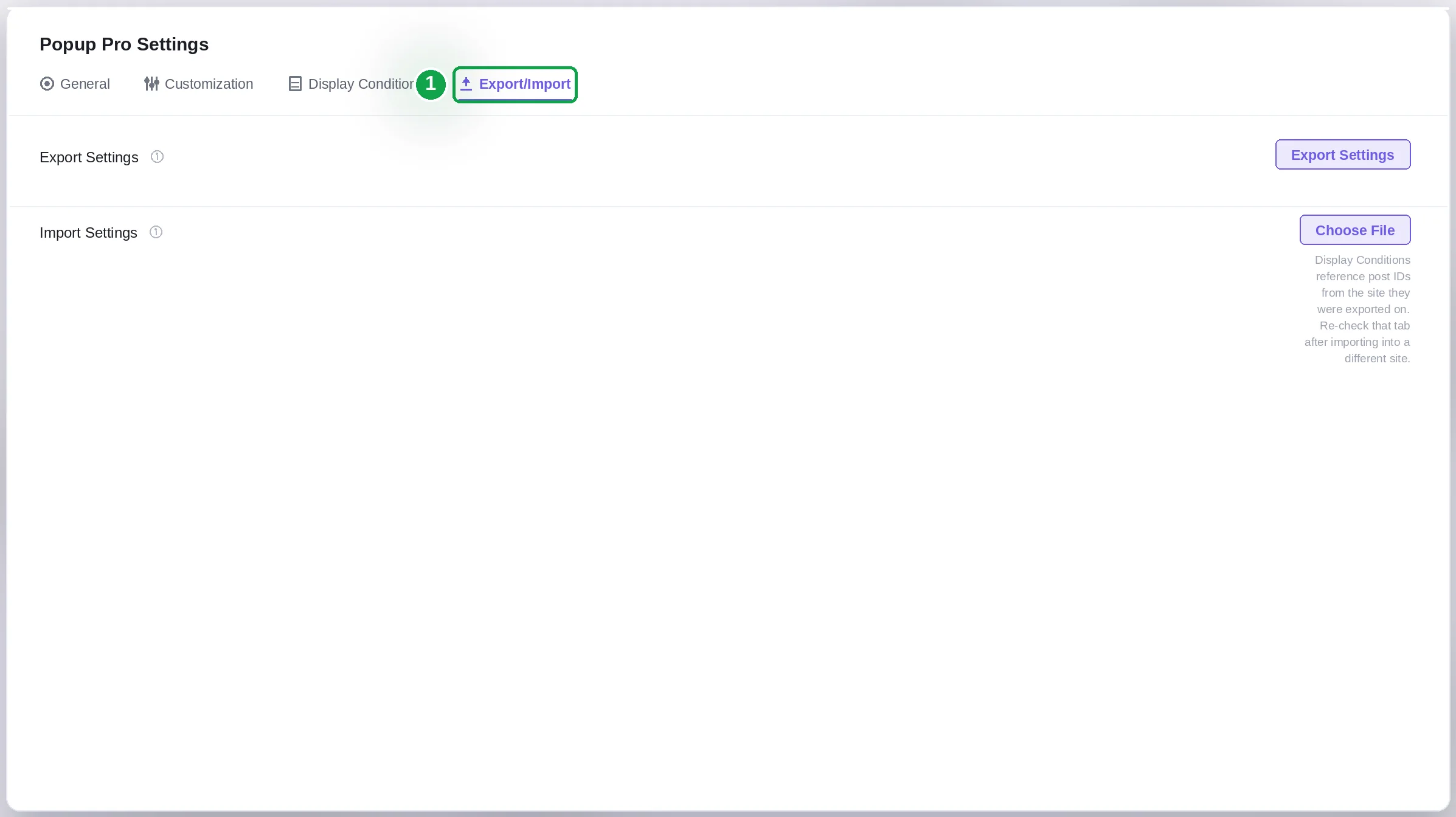
Popup Pro Settings now includes a fourth tab — Export/Import — alongside General, Customization, and Display Conditions. Use it to move your popup configuration between sites, or to keep a backup before making major changes.
Export Settings
Click Export Settings to download your current Popup Pro configuration as a file. This captures your General, Customization, and Display Conditions setup so it can be restored later or transferred to another site.
Import Settings
Click Choose File to select a previously exported settings file, then confirm to apply it. This overwrites your current Popup Pro configuration with the imported settings.
⚠️ Display Conditions reference post IDs from the site they were exported on. Post, page, and product IDs are specific to each WordPress install. After importing settings into a different site, always revisit the Display Conditions tab to re-check and correct any targeting rules — an ID that pointed to the right page on your original site may point to something unrelated (or nothing at all) on the new one.
When to use this
Before a major redesign — export as a quick backup before changing your popup setup.
Moving to a new site — export from staging, import on production (or vice versa), then re-check Display Conditions.
Cloning a setup across multiple sites — export once from a template site and import into each new install, adjusting Display Conditions per site afterward.
Quick Reference
| Control | Type | What it does |
|---|---|---|
| Export Settings | Button | Downloads the current Popup Pro configuration as a file |
| Import Settings → Choose File | File upload + button | Uploads and applies a previously exported configuration file |


